Manage Your Payments End to End
Manage Your Payments End to End
Manage Your Payments End to End
Payment collection, link generation, refunds, and reporting; your practice's entire financial process is managed from a single screen.
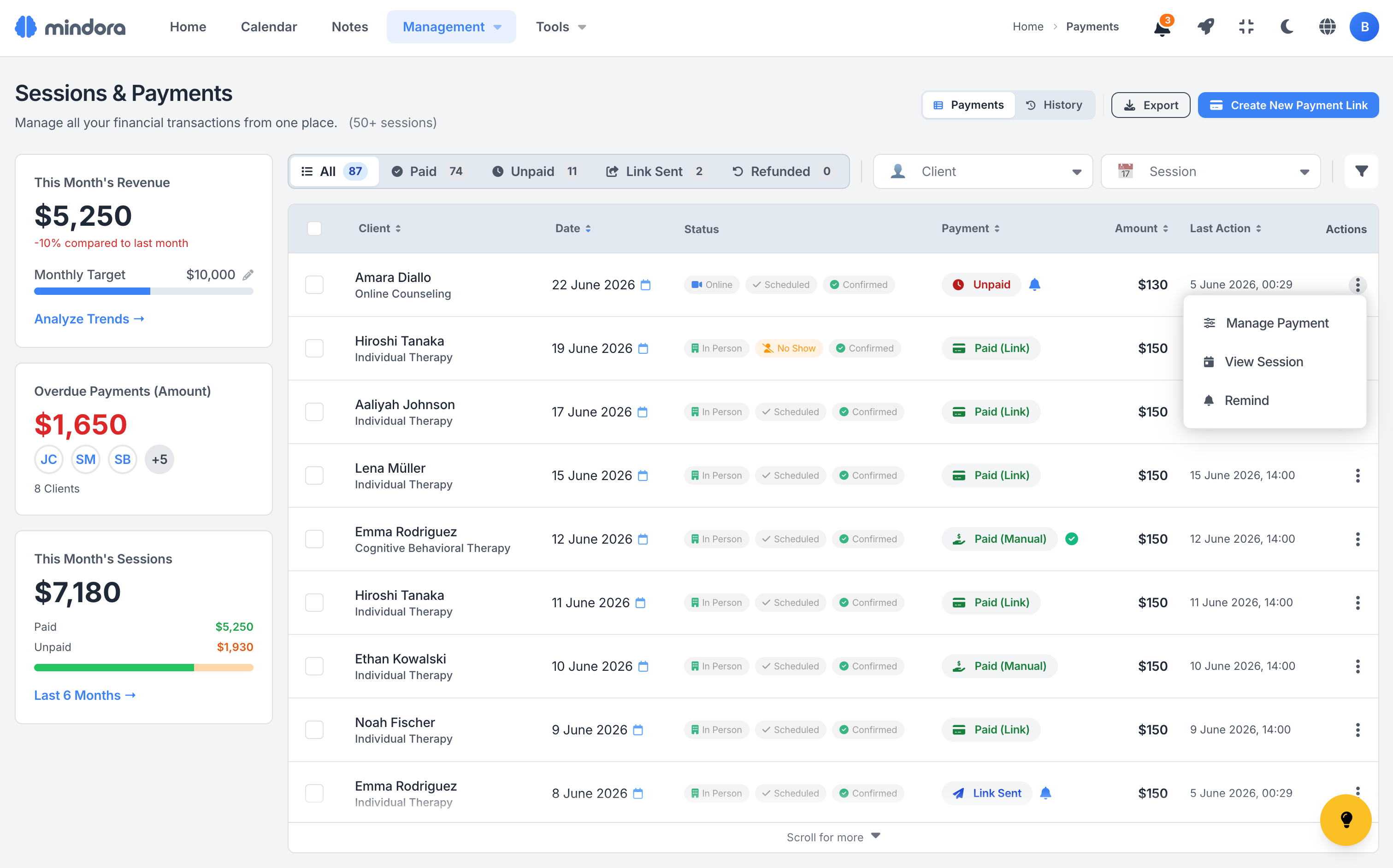
All Payments, One Table
Simplify your financial tracking with a payments table filterable by client, date, status, and amount. Status tabs help you focus quickly.
The Story Behind Every Payment
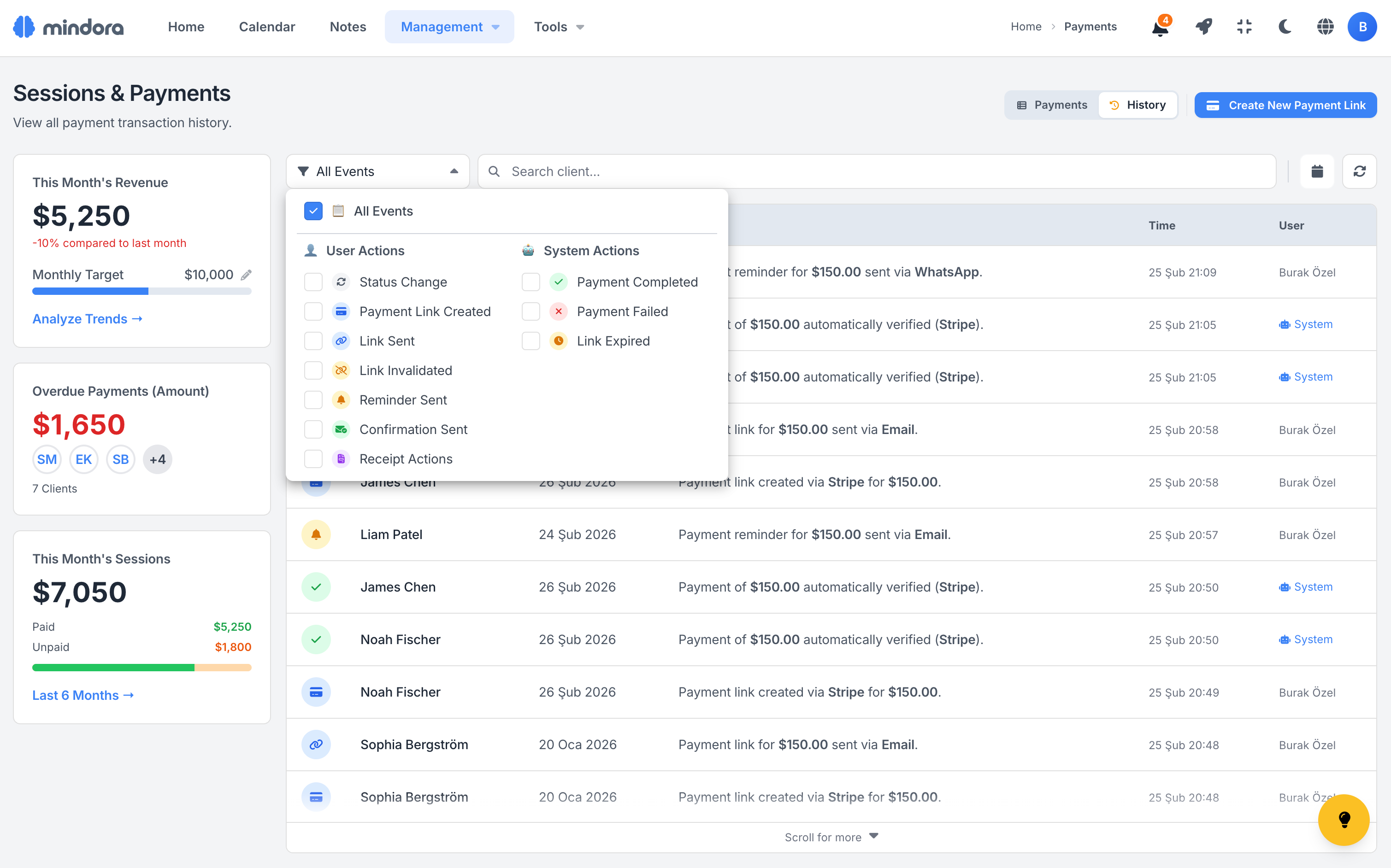
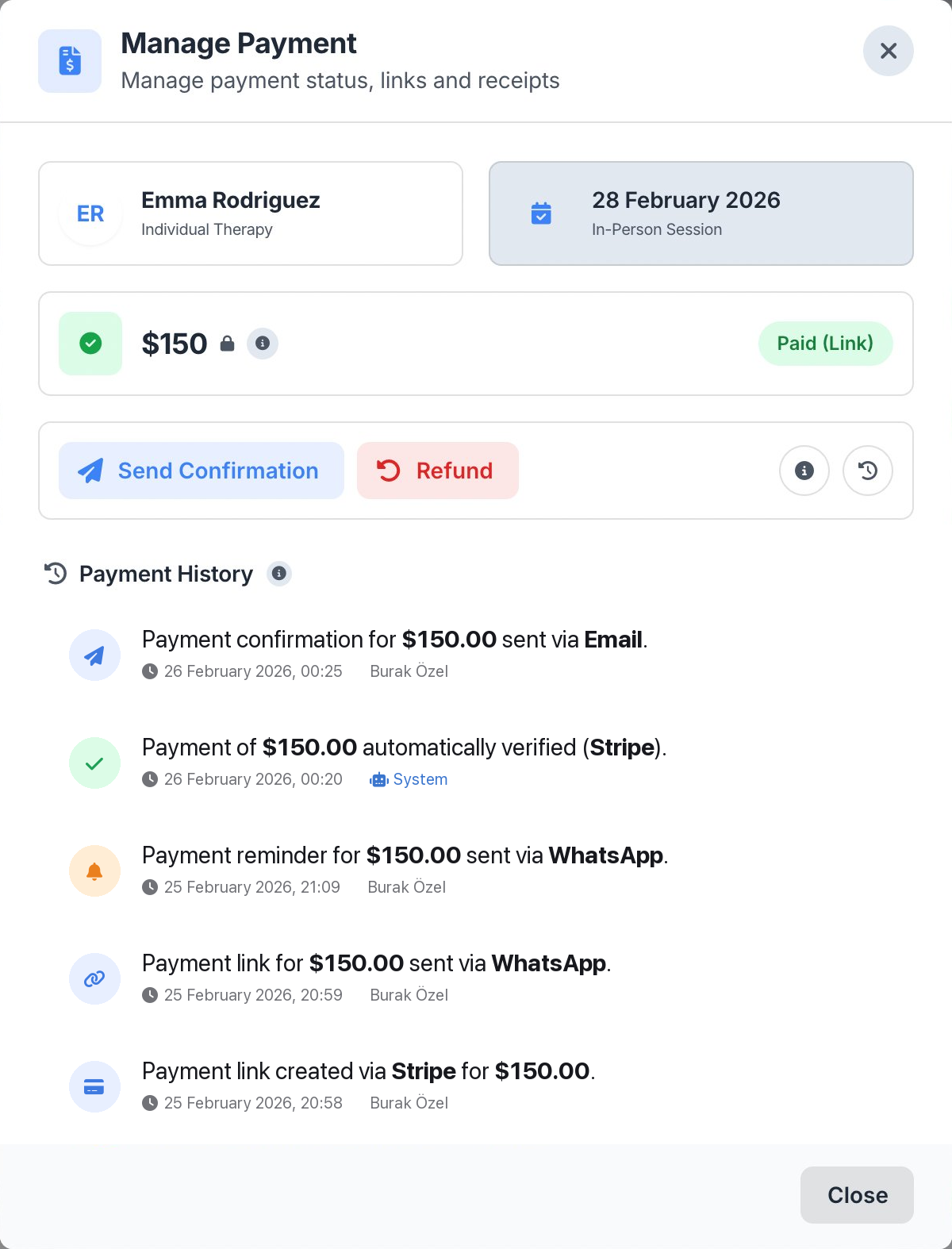
When a question comes up about a payment, 'when did this happen?', having a clear record keeps trust intact. Every payment's full lifecycle is automatically recorded in Mindora.
16 event types (link sent, collected, reminder, refund, cancellation) are timestamped; open the history to see who did what, when in chronological order.
16 Event Types
Every action including payment creation, link sent, reminder, refund, and cancellation is timestamped and kept unchangeable.
Chronological Flow
See the entire lifecycle of a payment in chronological order; which action happened when, who triggered it, all clearly documented.
Audit & Transparency
Payment dispute with a client? Open the history to see when the link was sent, when payment arrived, whether reminders went out; all logged.
All Payment History
Filter and view the payment history of all your clients from a single page, not just one client at a time, all in one place.
Your Financial Status at a Glance
You don't have to wait until month-end to see your practice's financial picture. The dashboard summarizes your revenue flow every time you open it.
This month's revenue, overdue payments, and the last 6 months of trend come together in one view; read your revenue picture at a glance.
Monthly Revenue
See your total monthly revenue, collected and pending amounts in a single card. Tell what's in your pocket from what's on the way at a glance.
Overdue Payments
Track the total amount and count of overdue payments at a glance. Send reminders to the relevant clients in one click, individually or in bulk.
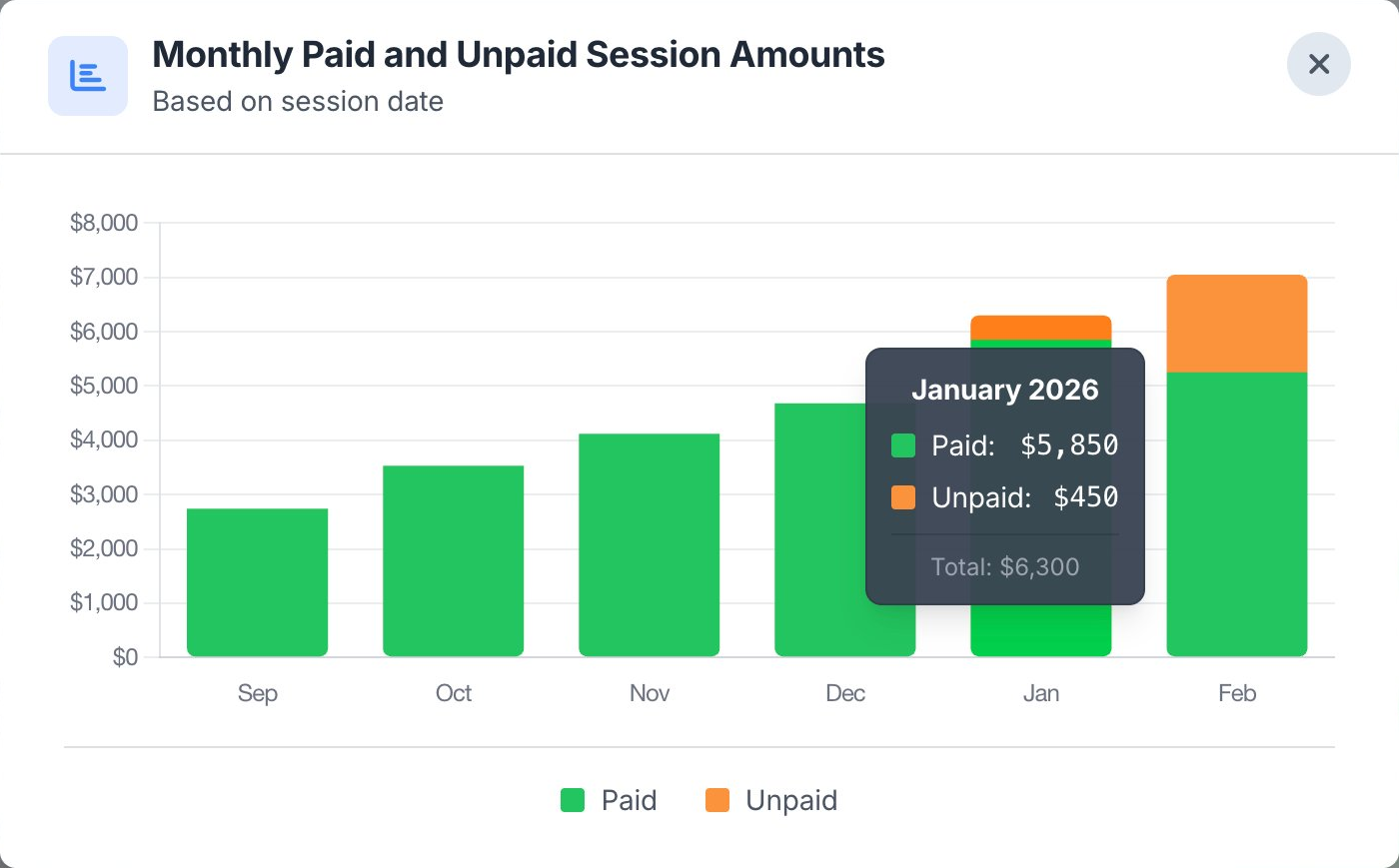
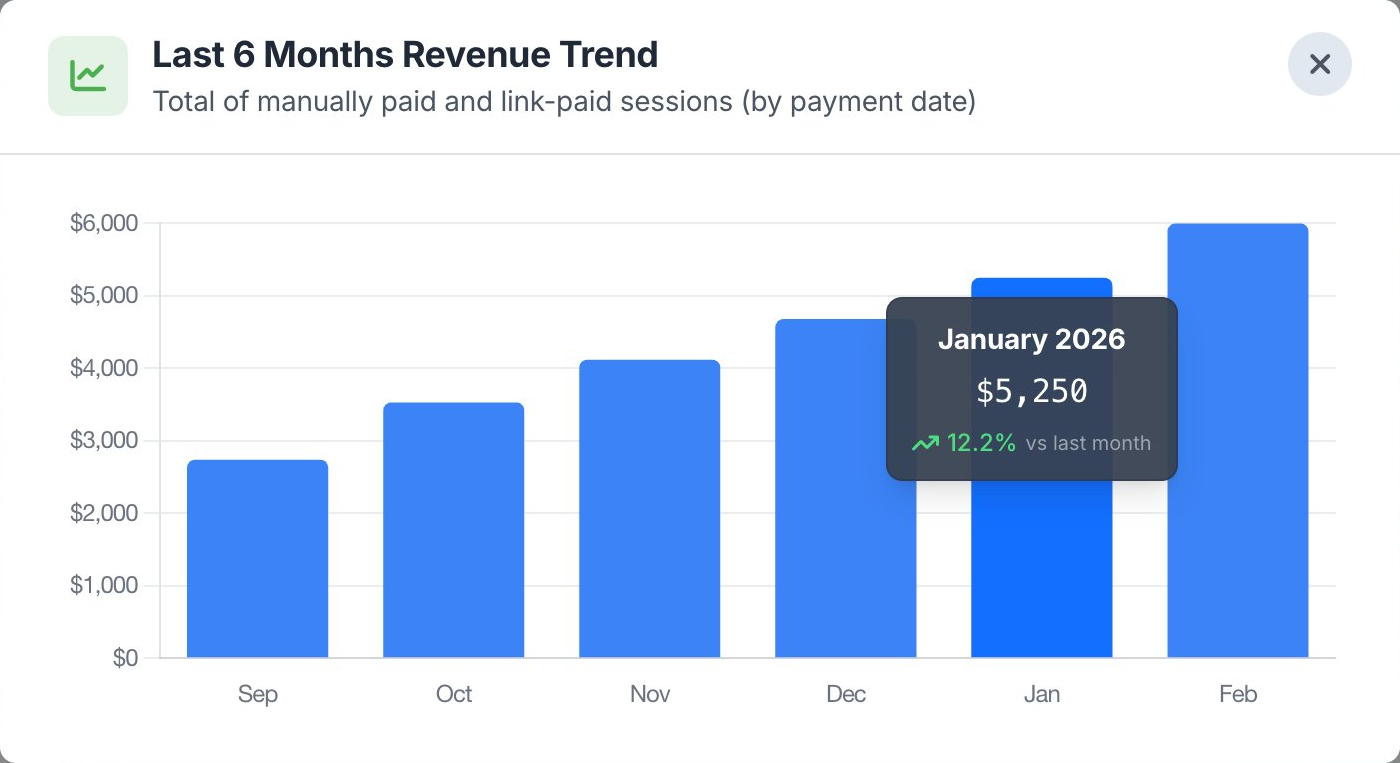
Monthly Revenue Chart
View the last 6 months of revenue two ways: by session date (earnings) or by payment-received date (cash flow); spot seasonal dips and busy periods.
Choose How You Collect
Mindora offers two collection channels: collect via bank transfer and mark as paid manually or take online payments through Stripe/iyzico.
With Paraşüt integration, filter your collections and issue e-invoices (e-SMM) without leaving Mindora.
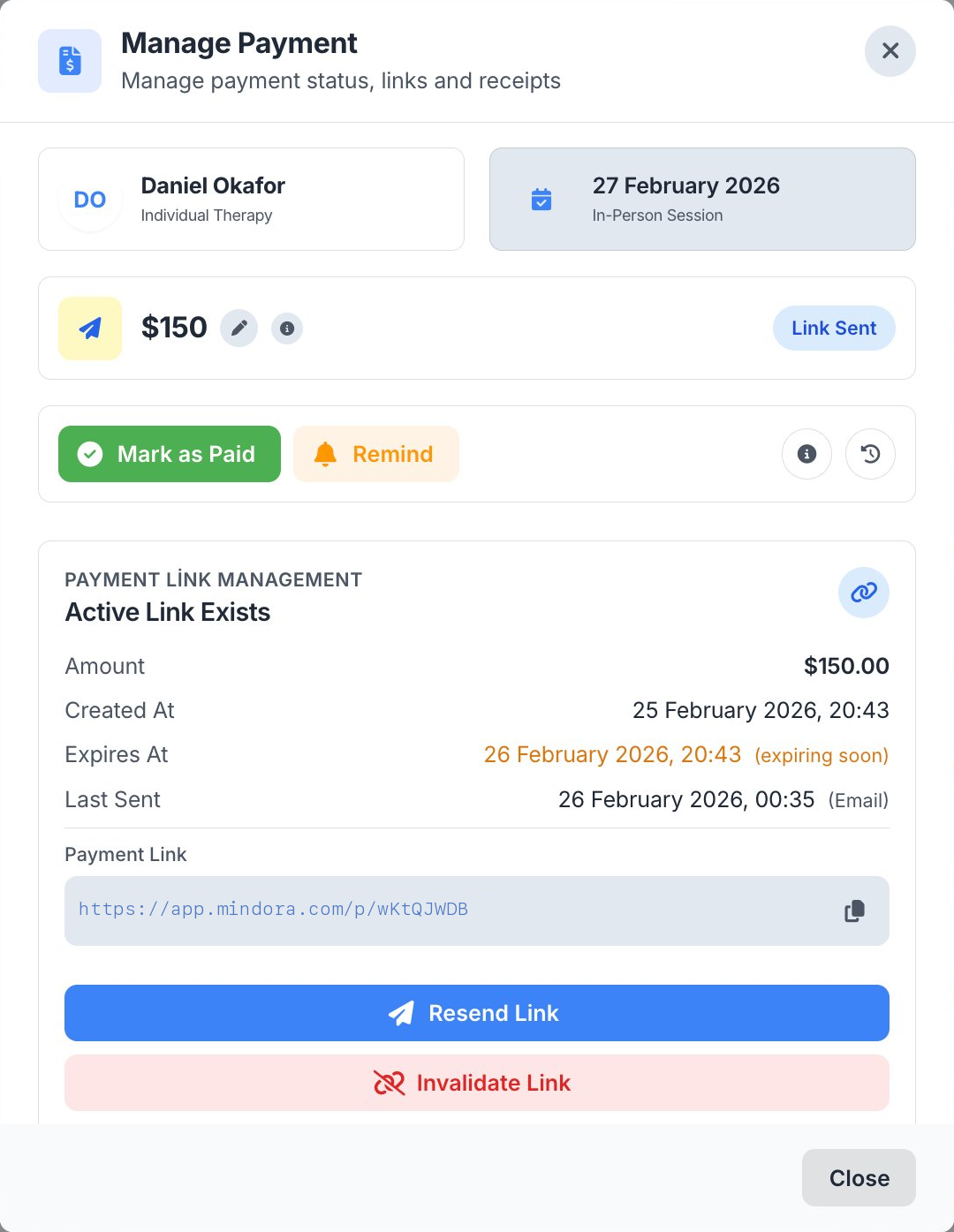
Secure Payment Link, One Click
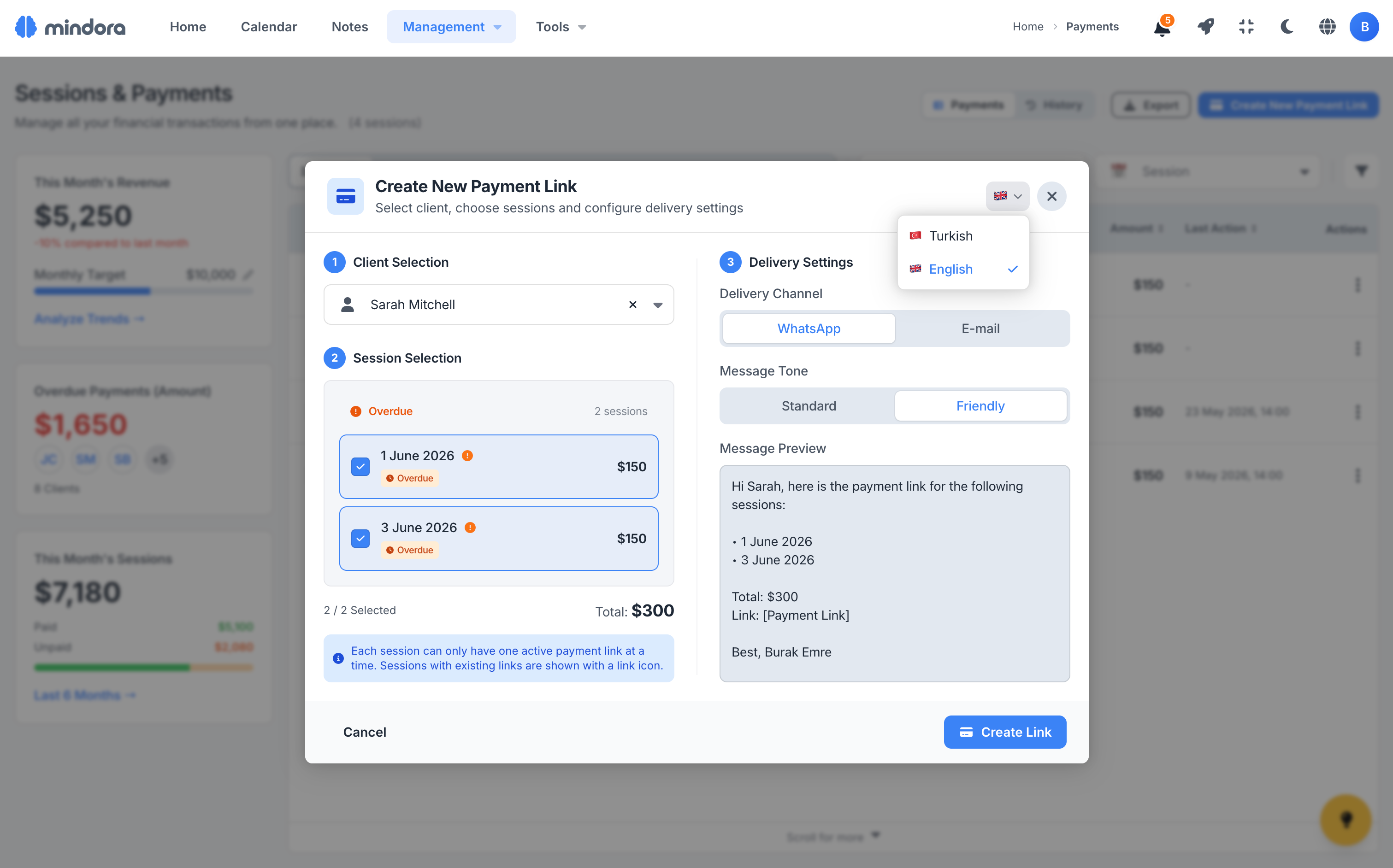
When making a first impression on new clients, online collection makes you appear more professional. Mindora generates a secure payment link with one click for each session and opens the message ready to send.
Combine multiple sessions' payments into a single link to send; when payment comes through, the status updates on its own.
Single Client Link
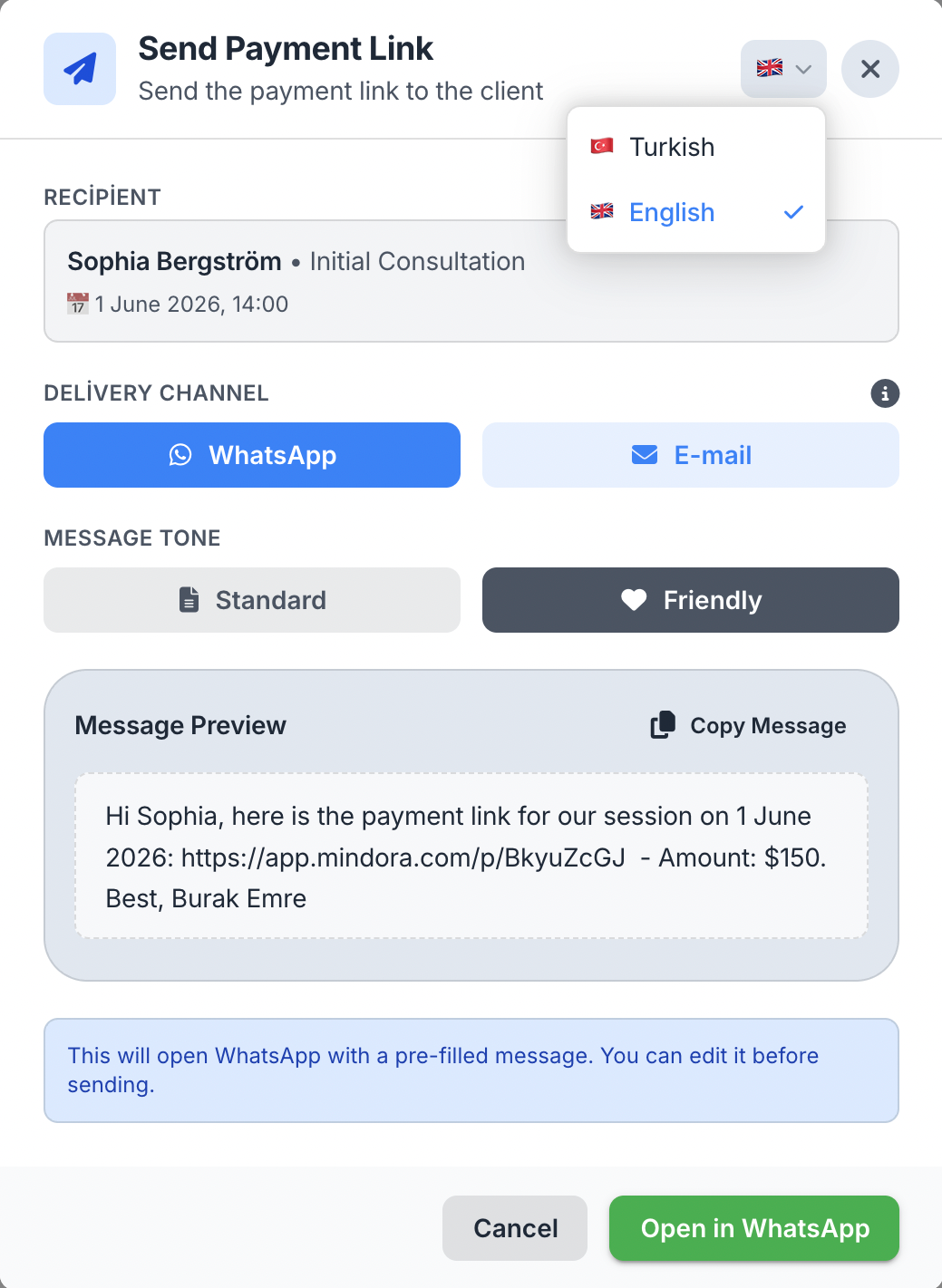
Create a payment link with one click from the session detail or payments table. Amount, currency, and description fill automatically; send to your client via WhatsApp or email.
Multiple Sessions, One Link
Combine multiple sessions of the same client under a single link. For package payments, the process is clearer for the client and tracking collapses to a single line for you.
Integrated Payment Providers
Connect your own Stripe account once; payments go straight to your own account with no middleman in between. Mindora takes no commission and never touches your funds.
Automatic Status Updates
When a client pays through the link, the status updates to "Paid", a record is added to the payment history, and you receive an instant notification. No manual tracking needed.
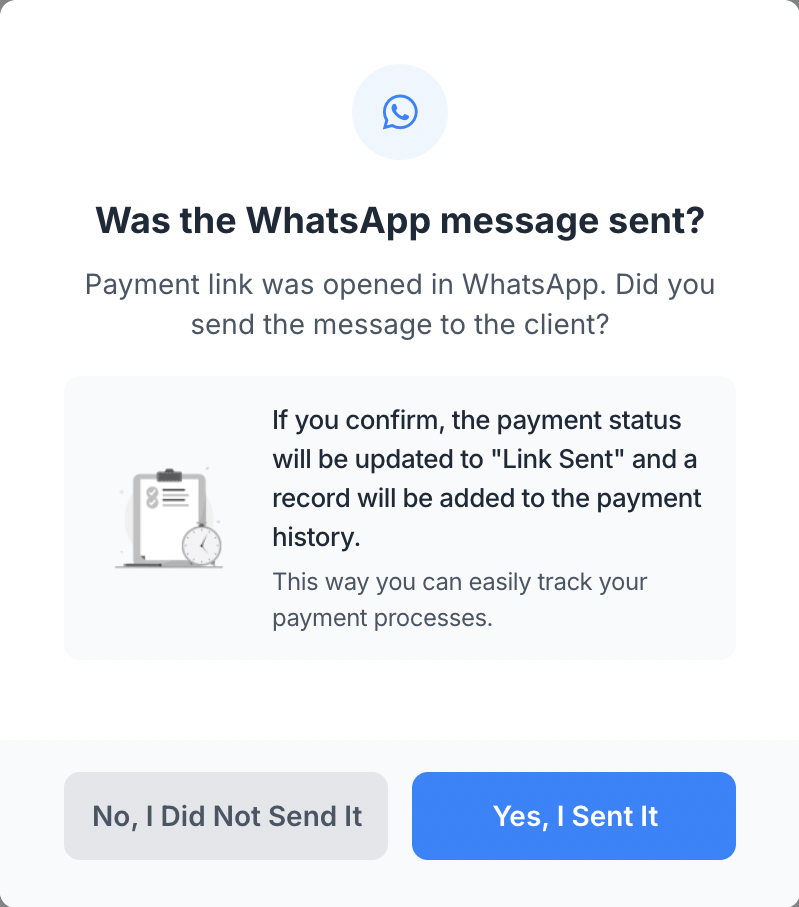
Create, Send, Track
Payment link creation, sending to the client, and delivery confirmation: a three-step flow.
Get Notified When Payments Arrive
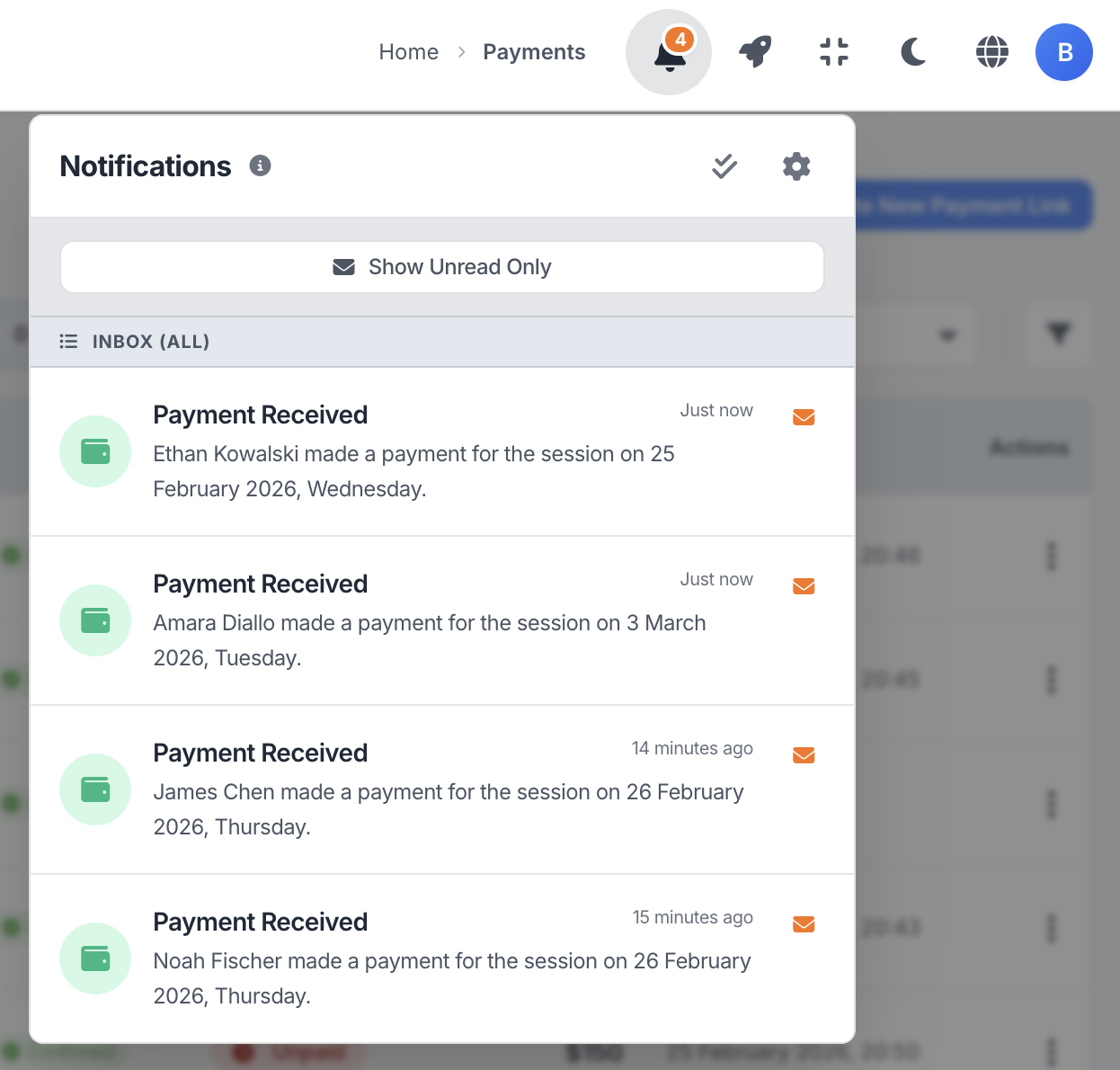
After sending a payment link, you don't have to keep checking the payments table wondering "did they pay?" Mindora notifies you the moment payment arrives.
Instant Notifications
When a client pays through the link, the notification appears right away; you see which client paid for which session in the message itself.
Notification Center
All payment notifications collect in a single center. Filter unread items and jump to the related session or payment with one click.
What Happens to Payment When a Session Changes?
Cancelling a session or marking it as no-show normally forces an on-the-spot call: "full fee or partial? cancel the link?" Mindora knows the payment state ahead of time and offers you the right options for each scenario.
Click below to explore the 6 core scenarios of the cancellation flow.
Cancel: Unpaid
Cancel Appointment
Are you sure you want to cancel this session?
Cancel: Active Link
Cancel Appointment
Are you sure you want to cancel this session?
You will need to send a new link for the new amount.
Cancel: Paid Online
Cancel Appointment
Are you sure you want to cancel this session?
₺1,500 paid via link
₺500 will be refunded automatically.
Cancel: Manually Paid
Cancel Appointment
Are you sure you want to cancel this session?
₺1,500 paid manually
If you need to refund, you can do it manually outside the app.
Cancel: Fully Refunded
Cancel Appointment
Are you sure you want to cancel this session?
₺1,500 was refunded
No additional refund is possible.
Cancel: Free Session
Cancel Appointment
Are you sure you want to cancel this session?
This is a free session, no fee will be affected.
These are just 6 core scenarios. Mindora is the only app that intelligently handles dozens of cancellation and no-show variants.
Your Practice's Financial Side, in One Place
From simple tracking to one-click e-SMM, from overdue prioritization to Türkiye accounting, your financial process stays in your control.
Step-by-Step Setup
From manually marking "paid" to online payment links and one-click e-SMM via Paraşüt; start at the step that fits your practice, grow as you need.
Clear Payment Flow
Each session's financial state (pending, link sent, paid, overdue, or refunding) is read at a glance through clear, color-coded badges.
Online Payment Links
Secure payment links via Stripe or iyzico; created instantly for single or multiple sessions, auto-confirmed when payment completes.
Bulk Payment Links
Combine several of a client's sessions into one link; overdue, this week, and future sessions are grouped together neatly for clarity.
Send via 3 Channels
Send links via WhatsApp or email, or copy and share them manually. Standard or friendly tone, language picked automatically by client.
Full & Partial Refunds
Issue full or partial refunds via the provider; process several partial refunds in sequence if needed. Then issue the correction receipt.
Receipt Management
Upload receipts manually as PDF or JPG, or issue Paraşüt e-SMM directly. Send to the client via WhatsApp or email in just one click.
🇹🇷 Türkiye Accounting Flow
Paraşüt integration issues e-SMM directly from Mindora; client info stays synced and GİB-compliant records are kept automatically.
Session-Payment Sync
Session changes flow into payments intelligently; on cancellation or no-show, you decide whether to charge or refund, and the record updates.
Overdue Prioritization
A formula combining debt amount and waiting time surfaces your most critical clients; send a reminder or new link in one click.
Revenue Dashboard
This month's collections, the change vs. last month, an overdue table and a full 6-month trend; your financial health at a glance.
Detailed Payment History
Every payment's full lifecycle on record: link delivery, reminder, collection, refund, receipt. Who, when, what changed, fully tracked.
Scenarios from Your Daily Practice
See how the payment module fits into a therapist's daily workflow.
Weekly Payment Follow-Up
Open the payments table every Friday. From the "Pending" tab, bulk-create payment links for the week's sessions and send them via WhatsApp. Mark transfers as "Paid" and review the week.
A Busy Multi-Client Day
On a busy day, create a payment link with one click from the calendar at the end of each session. As payments arrive you get instant notifications; check the day's collections on the dashboard at day's end.
No-Show and Auto Refund
When a client doesn't attend and you've collected their online payment in advance: from the no-show modal, choose "Partial refund" and it happens automatically, logged with a timestamp.
Every Payment Status Under Control
8 payment statuses, clear transition rules, and fee editing controls; every edge case covered.
Payment Statuses
Initial state. No payment made or requested yet.
Payment link sent, waiting for payment.
Client paid through payment link. Locked status.
Marked as paid manually. Can be reverted.
Session fee is zero. Automatic and locked.
Refund Statuses
Refund initiated, payment provider processing.
Full refund completed. Locked status.
Partial refund completed, remaining stays paid.
Payment Flow
See visually which stages a payment can go through.
Status Transitions
Every transition is controlled — no random status changes.
| From | To | How |
|---|---|---|
| Unpaid | Link Sent | Send payment link |
| Unpaid | Paid Manually | Mark as paid manually |
| Link Sent | Unpaid | Cancel / invalidate link |
| Link Sent | Paid via Link | Client pays via link (automatic) |
| Link Sent | Paid Manually | Mark as paid manually |
| Paid Manually | Unpaid | Marked by mistake — revert |
| Paid via Link | Refund Pending | Initiate refund |
| Refund Pending | Refunded | Full refund completes (automatic) |
| Refund Pending | Partially Refunded | Partial refund completes (automatic) |
| Partially Refunded | Refund Pending | Initiate another partial refund |
| Partially Refunded | Refunded | Refund remaining amount in full |
| Refunded | Cannot be changed | |
| Free Session | Cannot be changed | |
Locked statuses cannot be changed for accounting integrity.
Fee Editability
Whether you can edit the session fee depends on the payment status.
Learn More
Detailed guides about the payment system.
Frequently Asked Questions About Payments
Common questions about Stripe/iyzico/PayTR, payment links, refunds, multi-currency, and accounting integration.
Take Control of Your Payments
Payment tracking, link generation, revenue analytics, and refund management — all your financial processes in one platform.