All Your Appointments, One Screen
All Your Appointments, One Screen
All Your Appointments, One Screen
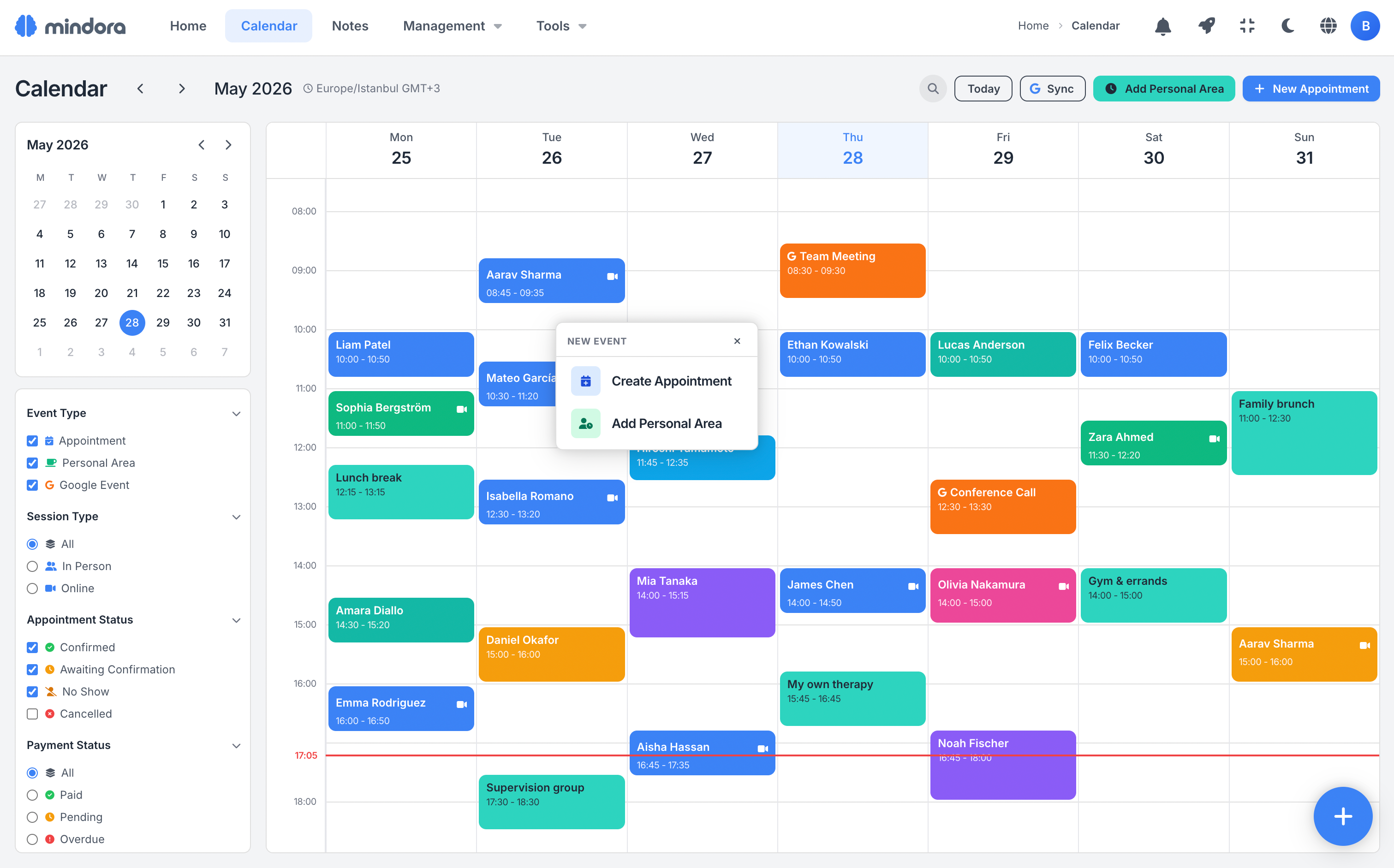
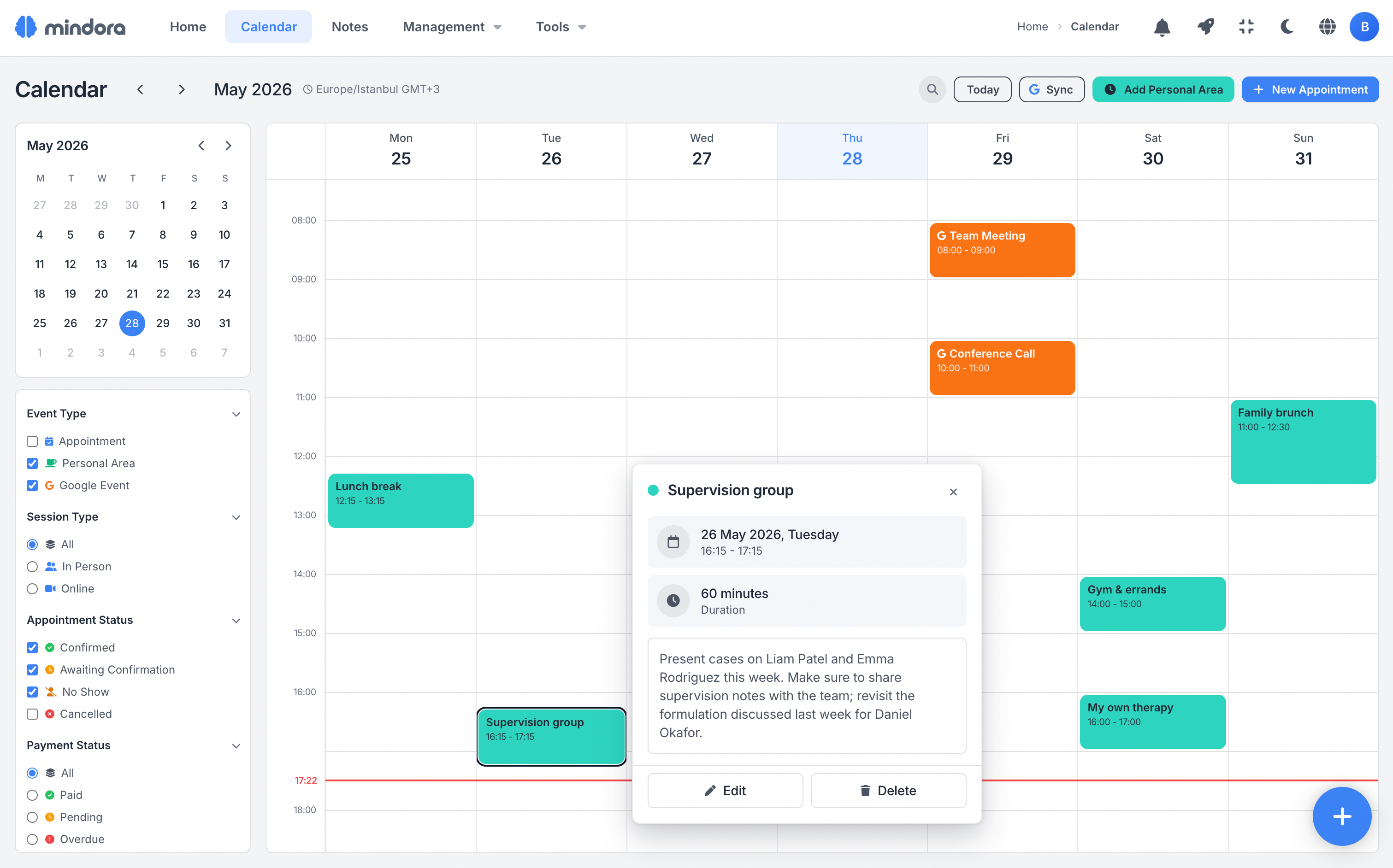
Your sessions, personal blocks, and Google events come together in the same weekly view; plan your day from a single screen.
See Your Week at a Glance
When your appointments, personal blocks, and Google events live in different places, the full shape of your week is hard to see. The calendar brings all three into the same view.
Read your day quickly with color-coded session cards and status indicators, and act from the quick menu when needed.
Everything at Your Fingertips
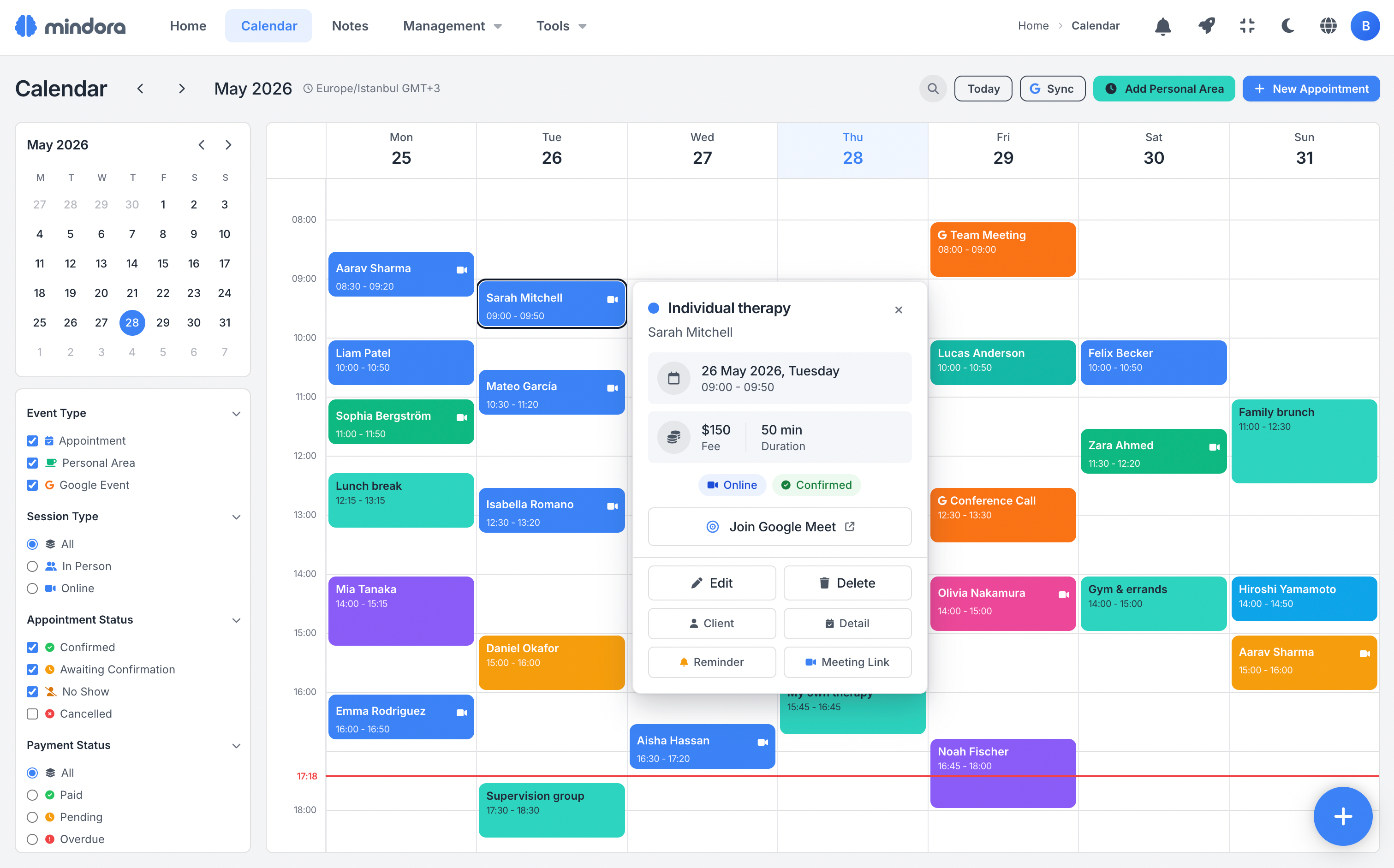
When you need a quick piece of info or action about a session, you don't need to leave the calendar. Click a session and client details and quick actions open in the same card; join Google Meet, send a reminder or meeting link via WhatsApp or email.
Client Communication from Calendar
Prepare a session reminder or meeting link without leaving the calendar.
Mindora auto-fills client, date, time, and link details into the message, then opens it ready in your WhatsApp or email.
Session Reminders
Click a session on the calendar to open the reminder message ready. Date, time, and service details are filled in automatically; the message appears ready to send in your WhatsApp or email.
Meeting Link Sharing
For online sessions, the Google Meet link is auto-inserted into the ready message. Mindora opens it in your WhatsApp or email, and you send it to your client from your own account.
Message Templates
Pick a formal or friendly tone and edit the message however you like before sending. Templates are prepared automatically based on the client's language, timezone, and appointment details.
Send Confirmation
The message opens in your WhatsApp or email; after you send it, Mindora asks "Did you send it?" and updates the session record based on your answer. So final control always stays with you.
One Pattern, a Full Series
If you meet with a client regularly, you don't have to create each session one by one.
Mindora creates the series automatically based on the recurrence pattern you set, and places it on your calendar.
Flexible Recurrence Patterns
Set weekly, biweekly, monthly, or custom-interval recurrence patterns. If there's a conflict with existing appointments, the system warns you in advance; you still decide exactly how to proceed.
Edit Scope
When you change something in a series, clarify the scope: just this session, or this one and all that follow? Mindora previews the affected sessions so you manage the series with confidence.
Payment Protection
When deleting or updating sessions in a series, payment status is taken into account. For sessions with received payment or active payment links, the system activates protection and warnings.
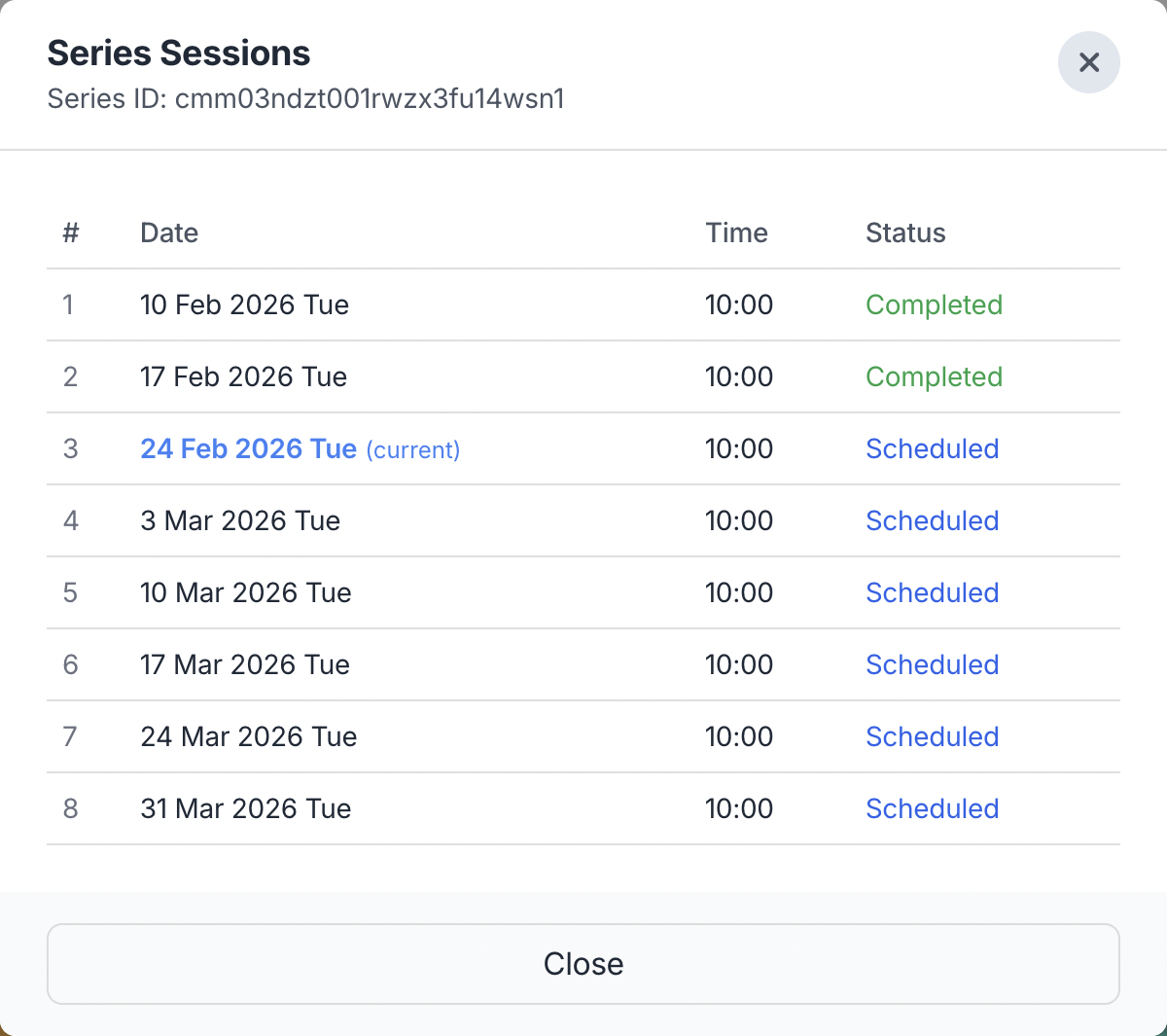
Series sessions list
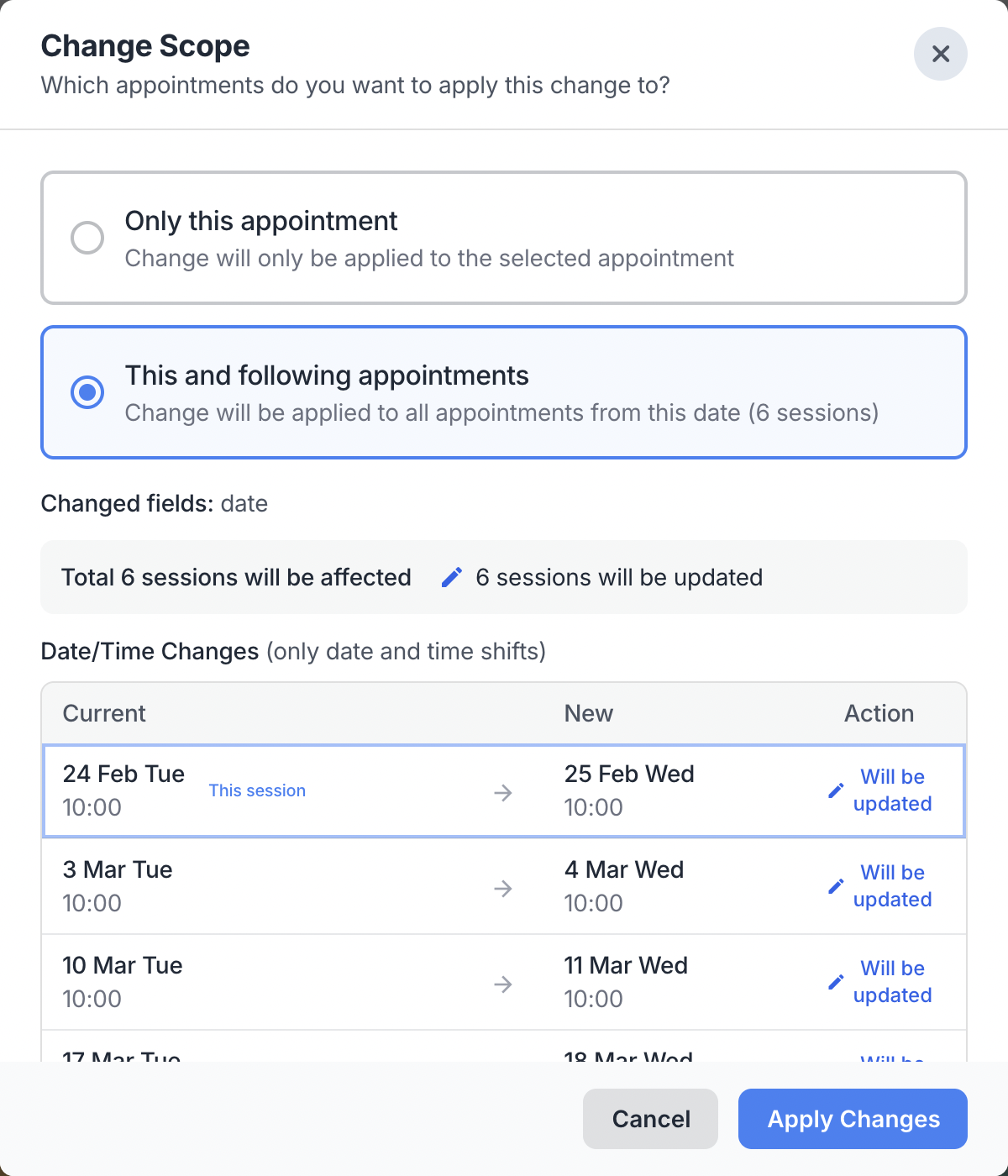
Edit scope and preview
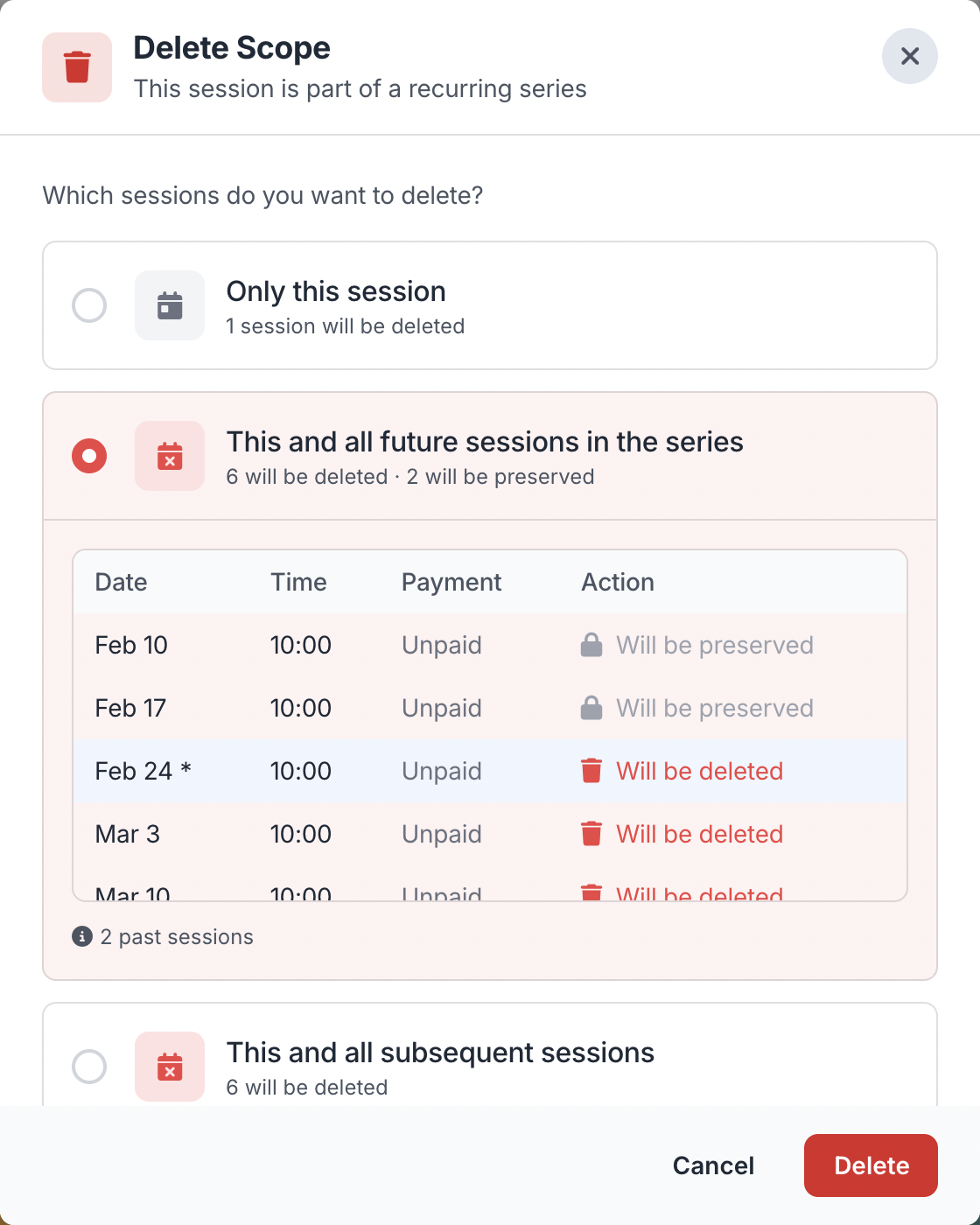
Delete scope selection
Stay in Sync with Google Calendar
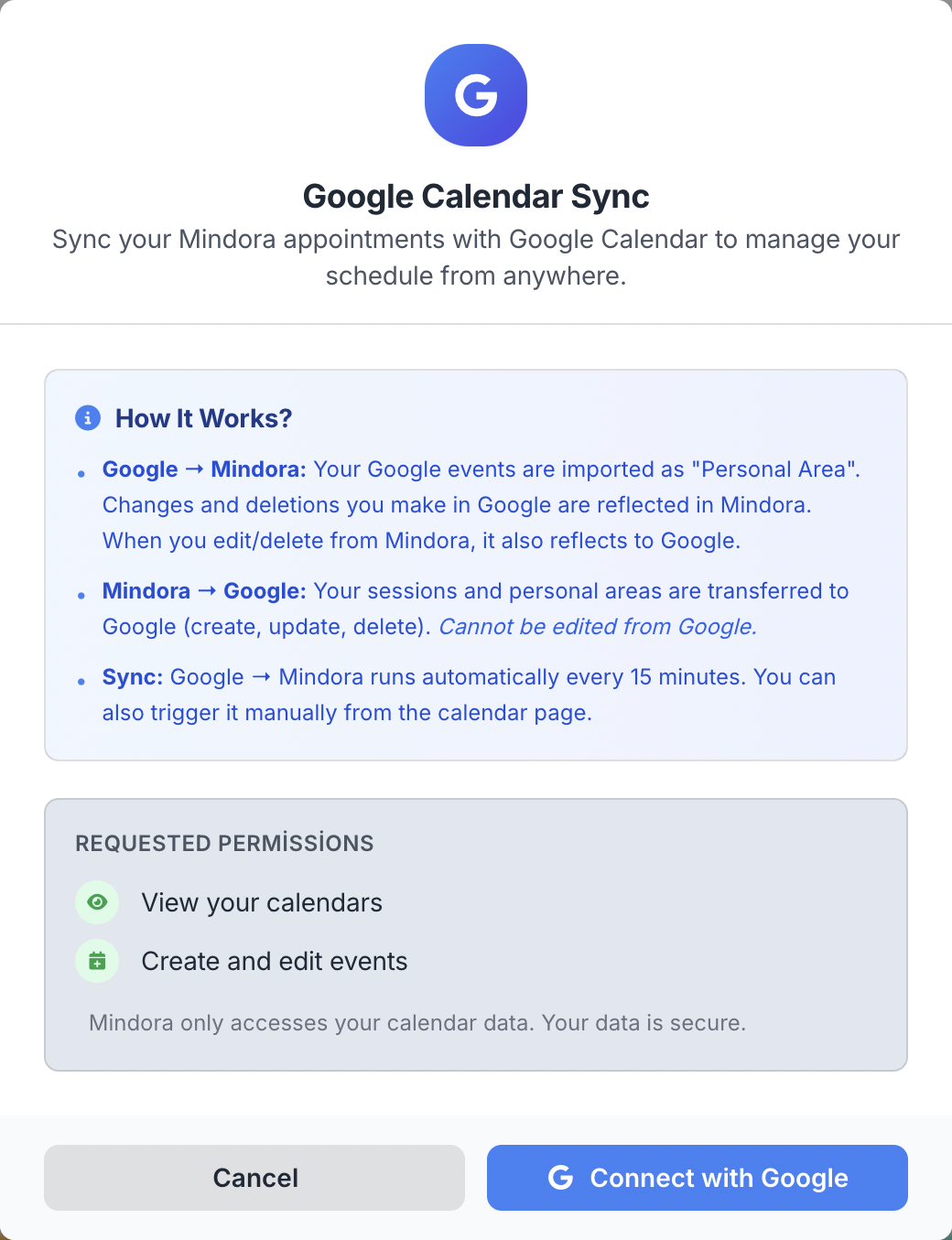
Connect your Google Calendar and all your appointments sync automatically. Google Meet links are created automatically for online sessions.
Bi-Directional Sync
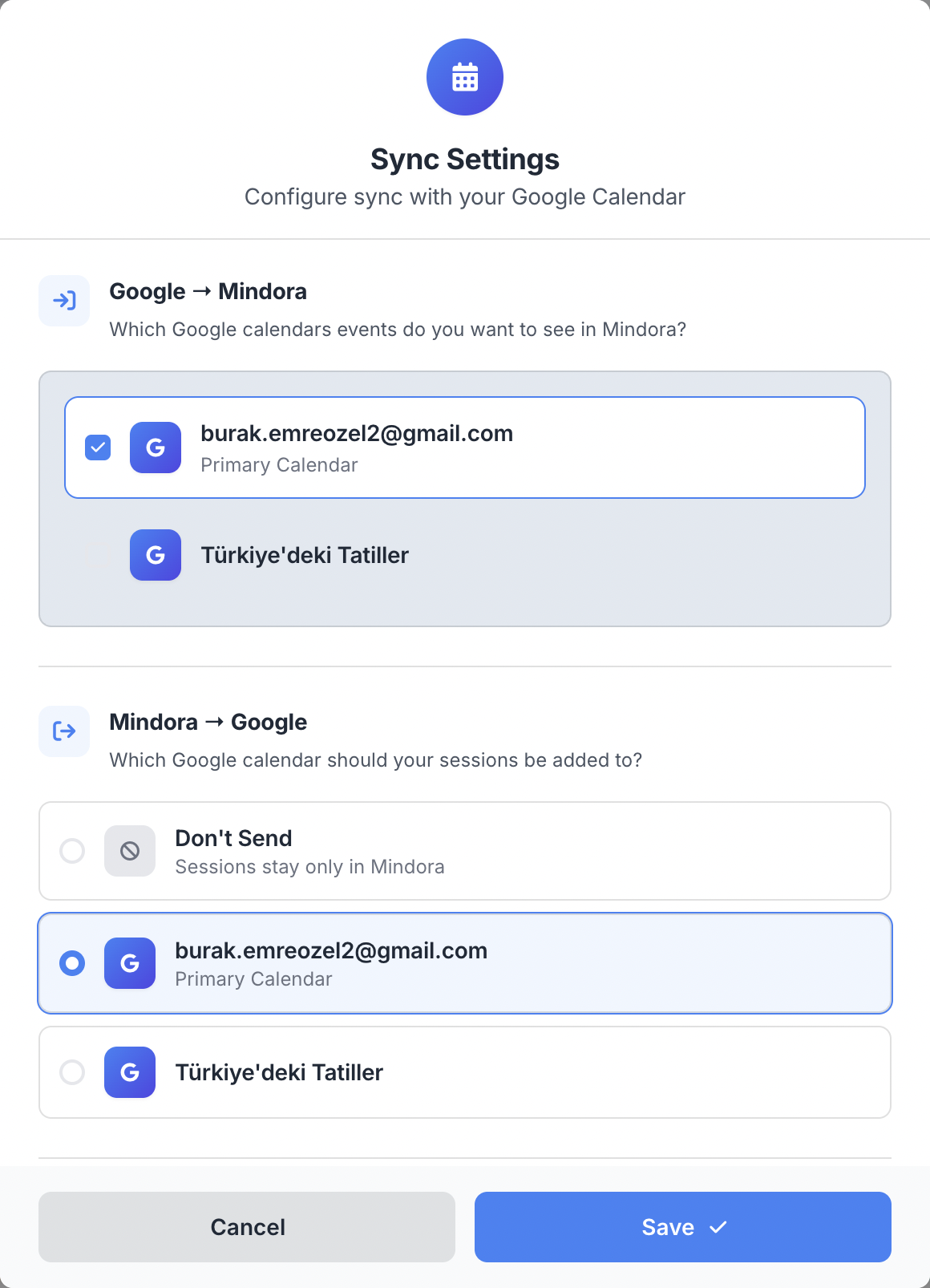
Sessions created in Mindora appear in Google Calendar. Google events appear as personal areas in Mindora.
Instant + Periodic Sync
Changes in Mindora sync instantly to Google. Changes from Google update every 15 minutes.
Color Coding
Sessions appear as Blueberry (purple-blue), personal areas as Sage (light green) in Google Calendar.
Google Meet Automation
Google Meet links are created automatically for online sessions and shared via calendar invites.
Connect
Configure
Filter & Focus
Your calendar holds appointments, personal blocks, and Google events side by side. On busy days, you want to see what matters at the moment, not all of them.
Filter by event type, session status, payment status, session type, or client name to narrow your calendar to what you need right now.
Beyond a Calendar: Your Practice's Rhythm
From view to integration, online booking to personal blocks, manage your day from a single screen.
Weekly View
Track the shape of your week in a single view; each session's status (cancelled, no-show, online) is distinguished by color and icon.
3 Event Types Together
Sessions, personal blocks, and Google events sit side by side in the same view; no switching between different apps.
4 Filters + Client Search
Filter by event type, session type, appointment or payment status; find the client you need instantly by name.
Coloring Mode
Color the calendar by client or service; pick one of vivid, soft, or glass styles to tune the view to your preference.
Drag-and-Drop Rescheduling
Drag appointments to a different day or time; conflicts appear instantly, the new time is saved in seconds.
Website-Integrated Booking
Your custom online booking page connects directly to the calendar. Clients see real-time availability, requests land in your calendar instantly.
Two-Way Google Sync
Every change in Mindora syncs to Google Calendar instantly; events from Google are pulled into Mindora automatically in the background.
Multiple Calendar Management
Import content from multiple Google calendars, export to a single target calendar. Combine your different sources without disrupting your structure.
Manual Sync Report
Outside the automatic flow, trigger manual sync on demand; see added, updated, and deleted events in a summary instantly.
Auto Google Meet Link
Google Meet link is generated instantly for online sessions; apply to a single session or the entire series, shared automatically in messages.
Personal Blocks
Create personal blocks for breaks, supervision, training, or admin work; drag-and-drop to reschedule when needs change.
Recurring Appointments
Create weekly, biweekly, monthly, or custom series. Plan up to 52 sessions from one definition; you choose the scope when editing or deleting.
Scenarios from Your Daily Practice
See how the calendar fits into a therapist's daily workflow.
Planning the Week Ahead
Open the calendar Monday morning and plan your week. Reschedule a client carried over from last week to Wednesday with drag-and-drop, create an 8-week recurring series for a new client, and block Friday afternoon as a "Training" personal area.
Managing a Busy Day
On a busy day, set the calendar filter to "Appointments Only"; personal blocks and Google events fade away. Click any session to see the client name, time, and service type; copy the Meet link in one click to join online.
Coordinating with Google Calendar
Personal or professional events in your Google Calendar (supervision, training, social plans) appear in Mindora as Google events; you spot overlaps as you plan appointments. Sessions and blocks you create in Mindora sync back to Google Calendar instantly.
Learn More
Detailed guides about calendar management.
Frequently Asked Questions About the Calendar
Common questions about Google sync, recurring appointments, time zones, and sharing.
Organize Your Calendar
Manage your sessions, personal areas, and Google events in a single screen.