Take Control of Your Tasks
Take Control of Your Tasks
Take Control of Your Tasks
Clinical tasks and personal to-dos come together in one list, one calendar; plan without scattering.
Click the icon at the top right to switch to dark mode.
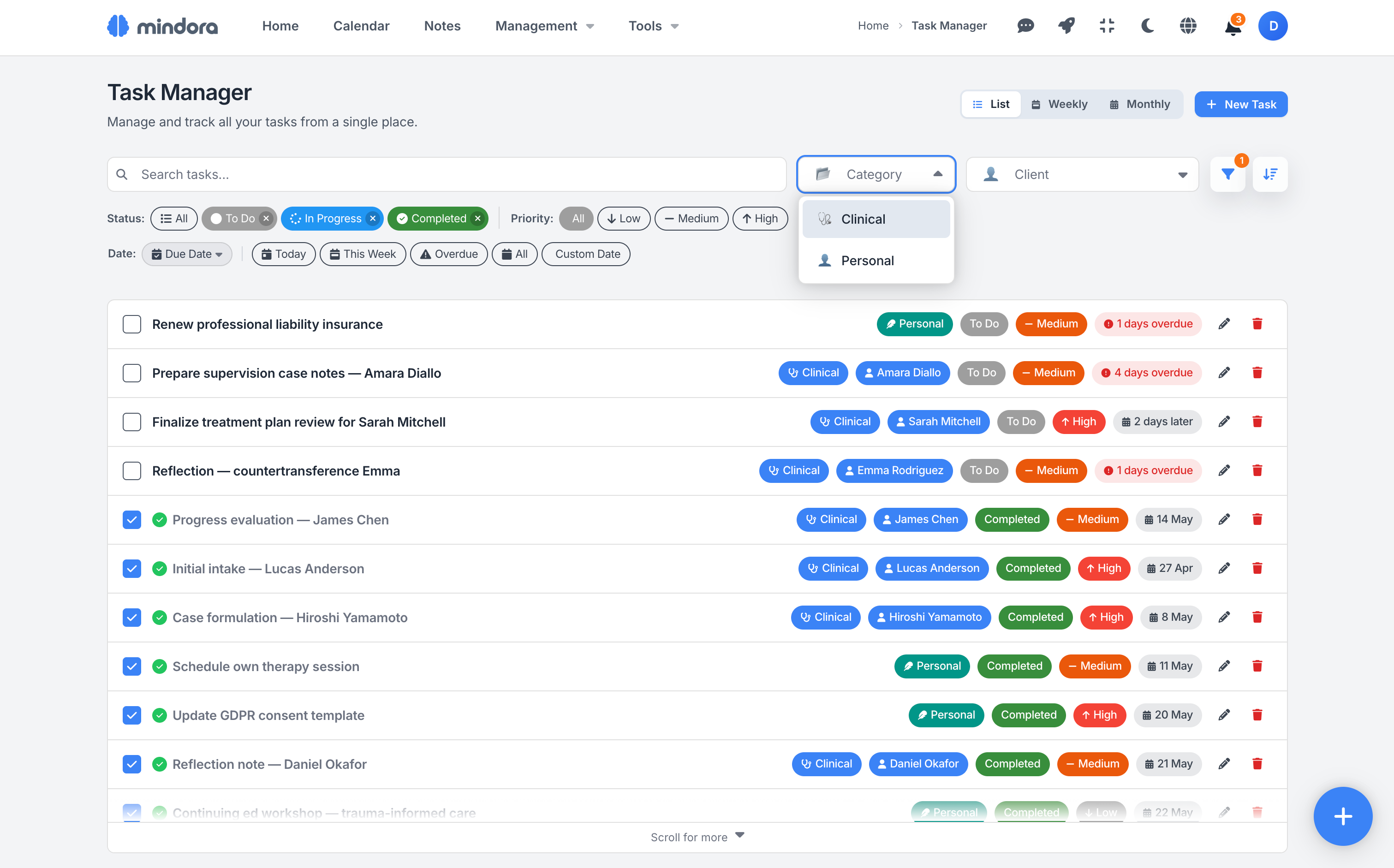
All Your Tasks on One Page
When client to-dos, personal routines, and follow-ups you need to keep track of scatter across different places, remembering what to do when becomes a burden. The tasks page brings them all onto a single page.
Track to-do, in-progress, and completed tasks in separate tabs; find what you need with priority, category, or client filters. Close a task in one click when you're done.
Detailed Task Creation
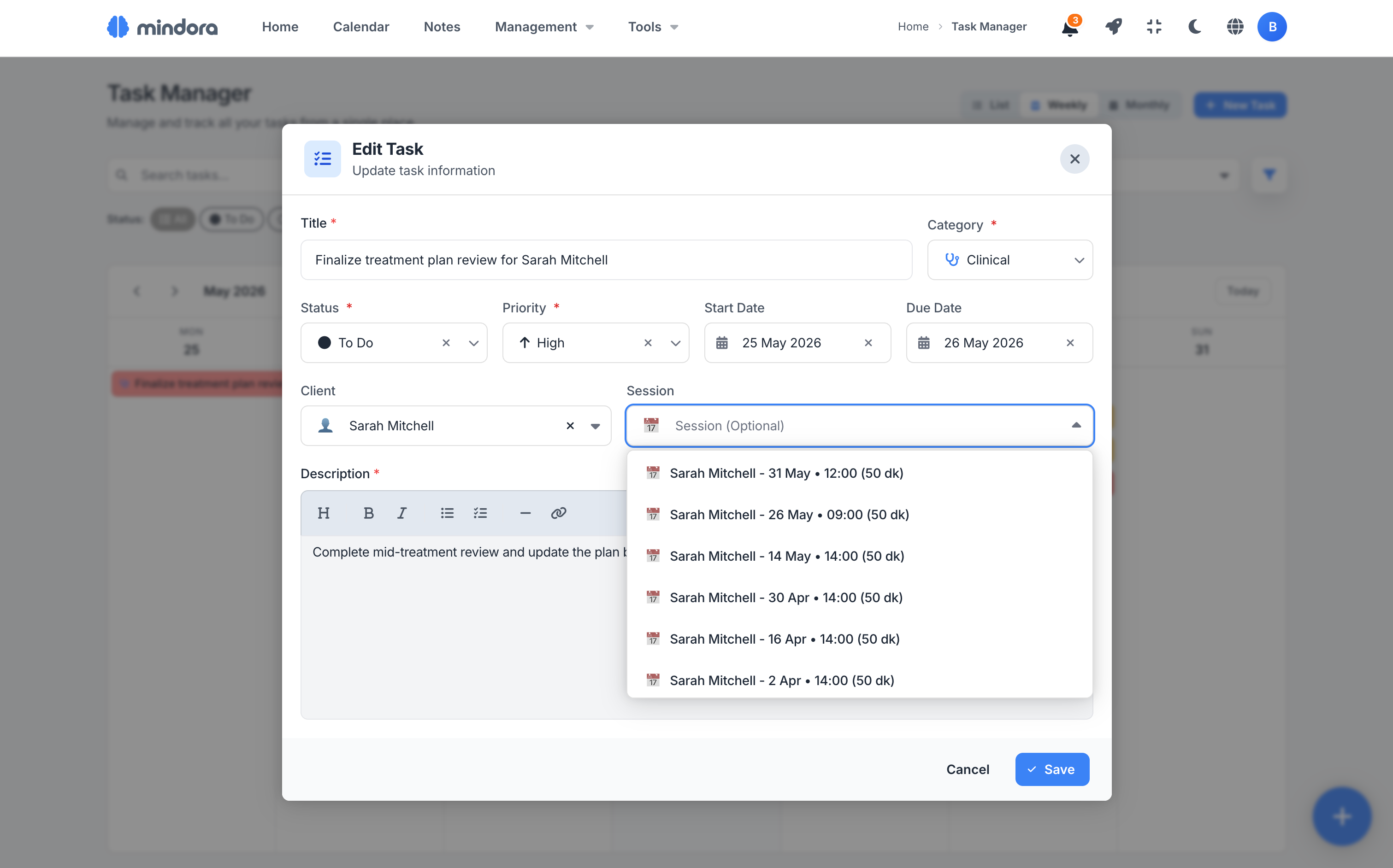
A task is more than its title; when it should end, its priority, and its category matter too. The task form lets you define title, description, status, and dates on a single screen, and once you enter the dates, the task drops into your calendar automatically.
Adapt the form to the task type: for a clinical task, link it to a client and session; for a personal task, just keep your own to-do list.
Visualize Your Tasks on a Calendar
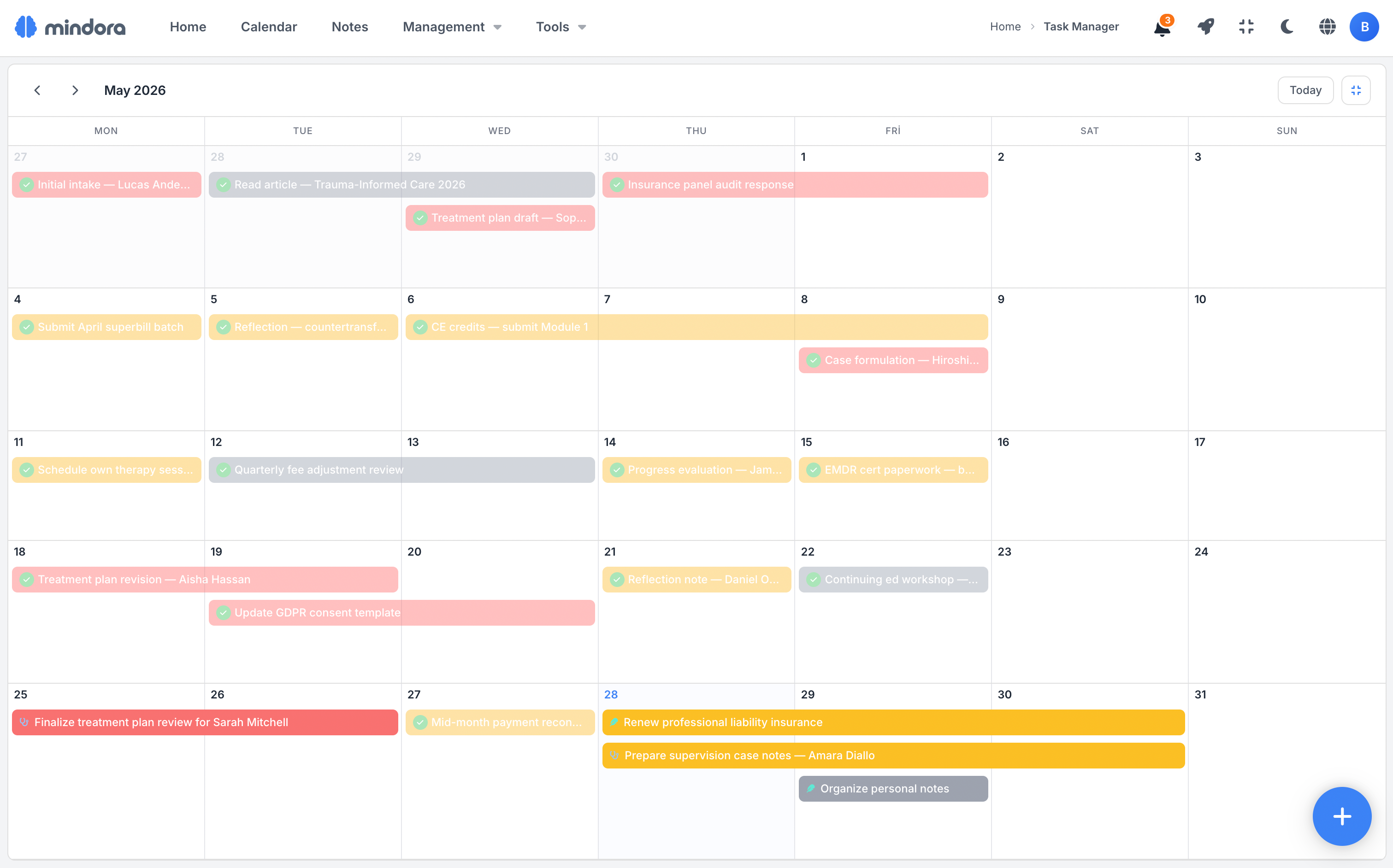
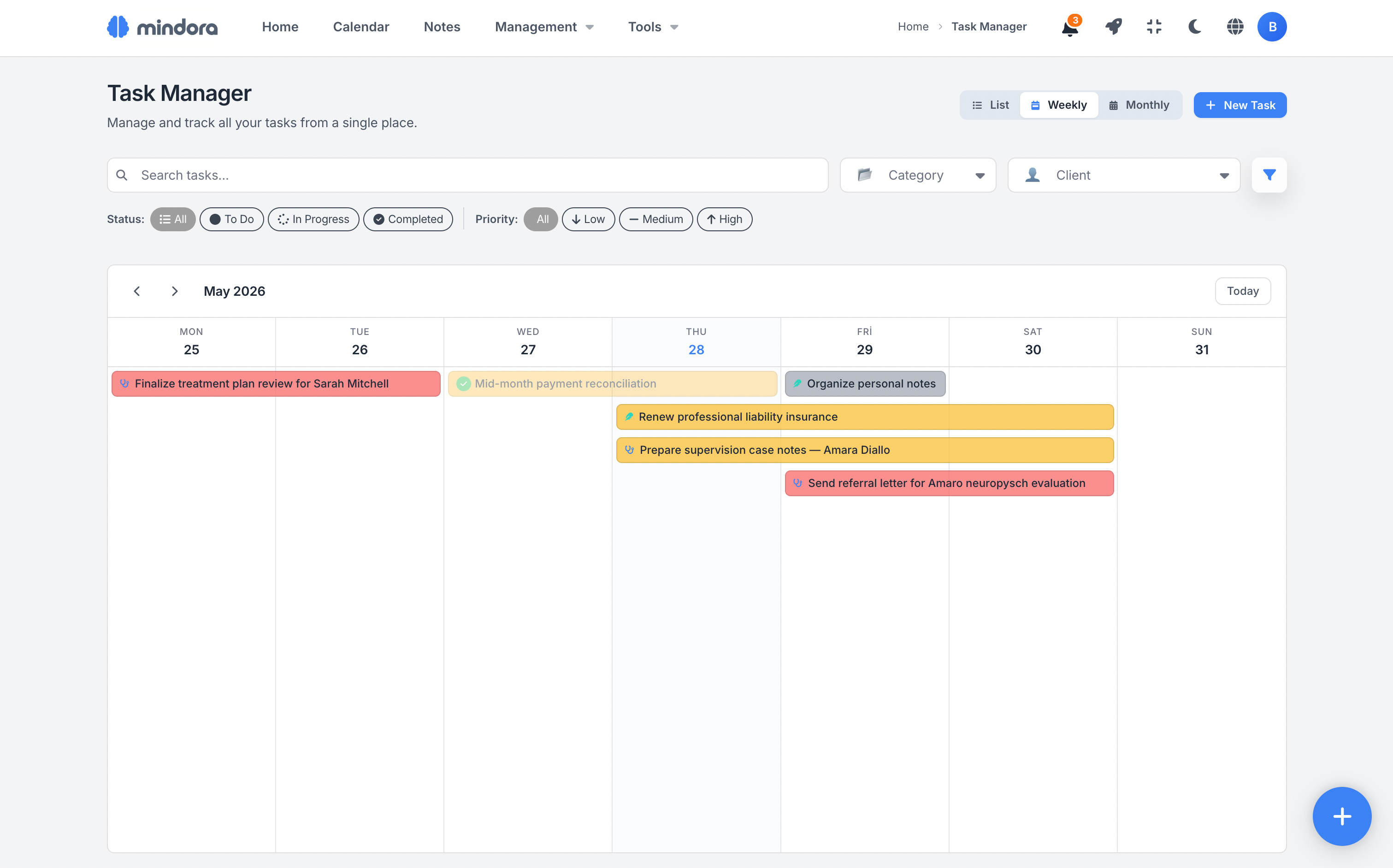
List view tells you what to do; calendar view shows you when. Tasks appear as priority-colored bars in both weekly and monthly views; you read your workload at a glance.
Drag a task to reschedule, pull the edges to change its duration. Plan changes are processed in seconds.
Pick a Visual Style
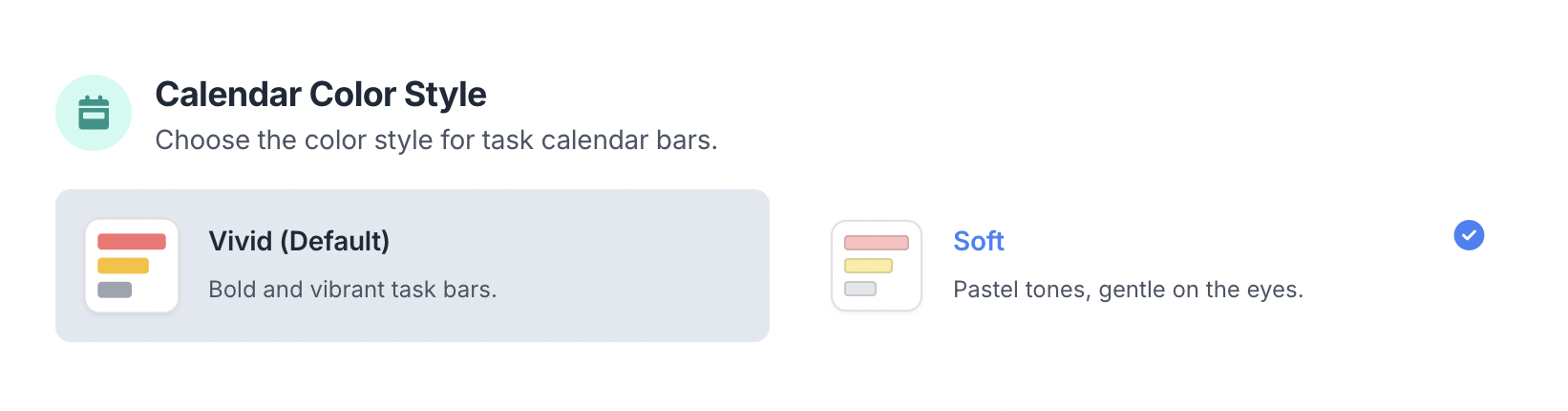
Your calendar sits in front of you all day, so visual comfort matters. Among Vivid, Soft, and Glass, pick whichever fits your style; switch anytime.
All the Tools for Task Management
From creation to completion, from filtering to rescheduling, your tasks always stay under control.
Quick, Rich Creation
Define the title, description, priority, and due date on a single screen; then flesh it out further with rich text formatting.
Status & Priority System
Status (to-do, in progress, done) and urgency (low, medium, high) show in color; switch with one click.
Clinical & Personal Tasks
Manage both clinical and personal tasks; link clinical ones to the right clients, sessions, or notes.
List View
All your tasks in one list, color-coded by category and priority. Completed ones slide aside, ready to restore.
Weekly Calendar
See your week at a glance; multi-day tasks stretch across days, click an empty slot to create a task in place.
Monthly + Focus Mode
Plan the whole month on one screen; switch to focus mode to give your full attention to the calendar.
Drag-and-Drop Rescheduling
Plans changed? Drag the task to its new time on the calendar; the new date is saved instantly, your plan stays current.
4 Quick Filters
Today, this week, overdue, or all: switch to the task set you want in one click. Overdue tasks stand out with a red warning.
Filters + Search + Sort
Filter by status, priority, category, client, and date; type to find what you need, then sort in whatever order you prefer.
Scenarios from Your Daily Practice
See how task management fits into a therapist's daily workflow.
Monday Planning
Open the weekly calendar on Monday morning and drag tasks left from last week into this one. Create a "prepare intro session" task for a new client and set it to high priority. Your week starts already planned on screen.
Quick Mid-Session Note
During a session you notice a follow-up you need to track for the client's homework. Create a clinical task on the spot and link it to the right client. It surfaces in your task list before the next session even begins.
Clinical vs. Personal
Keep admin work under personal tasks and client follow-ups under clinical. During working hours, filter to "clinical" and focus only on client work; at day's end, switch to personal for supervision or training notes.
Learn More
Detailed guides about task management.
Frequently Asked Questions About Task Management
Common questions about tasks vs notes, categories, list/calendar views, client linking, recurrence, and tasks vs reminders.
Ready to Organize Your Tasks?
Create a free account and explore your task management system today.